
This article explains how to add, edit, and update users in Plus accounts.
Plus accounts can have up to 25 users. However, it’s important that you don’t have more than one person working in the same campaign at a time. Our editor is set up to automatically save your work as you go and if multiple users are working in the same campaign at once, they may unintentionally clear out each other’s work.
Accessing Your Users
- Click on the gear icon in the upper right corner.
- Select Users from the dropdown menu.
- Scroll down to see a list of your current and invited users.
Editing Users
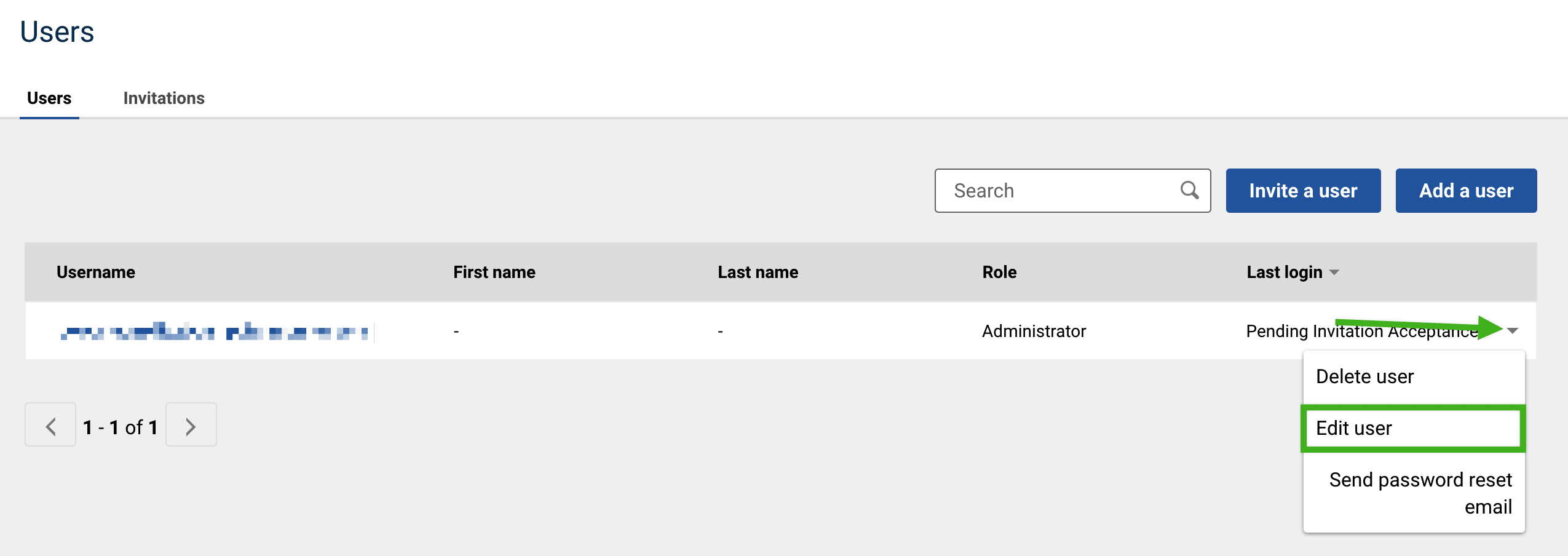
- In the Users tab, click on the dropdown arrow that corresponds to the desired user.
- Select Edit user from the menu. You can also use this dropdown menu to send an existing user a password reset email.
- In the pop-up window that appears, click on the Role dropdown menu.
- Choose a role from the list.
- Click on the Save button.
Note: Plus accounts have 5 permission levels available: Administrator, Full, Editor, Author, and Response Only.
Inviting New Users
- In the Users tab, click on the Invite a user button.
- In the pop-up window that appears, fill out the required information and select the new user’s role from the dropdown menu.
- Click on the Send invitation button.
You will see a quick message confirming the invitation has been sent. The user you invited will receive an invitation in their email inbox. All user invitations expire after 15 days. If the invitation has expired or has been deleted, clicking on the Access your new account link in that invitation will bring up an error message.
Tip: When attempting to add a new user, if you see a message that the user already exists, then you’ll need to find that username in the list and edit it, rather than using the “Invite a user” button.

Updating, Resending, and Deleting User Invitations
If you need to resend an invitation, click on the Invitations tab and select Resend invitation from the dropdown arrow menu.
You can also choose Edit invitation from the list, if you want to update the permissions assigned to the user. You can delete a pending user by clicking the arrow to the right of the user name and selecting the option to Delete invitation.
Sometimes internal user invites are not delivered due to your server’s cybersecurity settings. If you or your users are not receiving user invites and they aren’t in your spam or junk folder, allowlisting for delivery can help.