
This article explains how to use the survey block to link to surveys from your SurveyMonkey account.
The survey block is found in our legacy* editor and can be used to link your SurveyMonkey surveys in your email campaigns.
Using the Survey Block
In order to feature a survey from your SurveyMonkey account in your campaign, you will first have to build and publish the survey in SurveyMonkey. Afterward, you will use the Survey block to connect to your SurveyMonkey account.
Tip: When you’re done building a survey in your SurveyMonkey account, be sure to click Send Survey in order to publish the survey with the “Weblink” option. Once you’ve done that, your survey will be visible in the “Choose a survey” dropdown menu.
- Navigate to your Campaigns tab.
- Open a saved legacy* draft or click on the Create new campaign button to choose a legacy* template.
- Click on the Survey block icon in the left panel and drag it over to your mailing.
- As you drag the block over to your campaign, you will see yellow sections appear labeled “Drop here”. These yellow drop spots will turn green as you hover over them, so you know where the content block will appear in the mailing.
- Once you release the block, it will appear in the place you designated.
- In the pop-up window that appears, click on the Connect button and enter your SurveyMonkey credentials. If you’ve connected to SurveyMonkey previously, you’ll be automatically logged in.
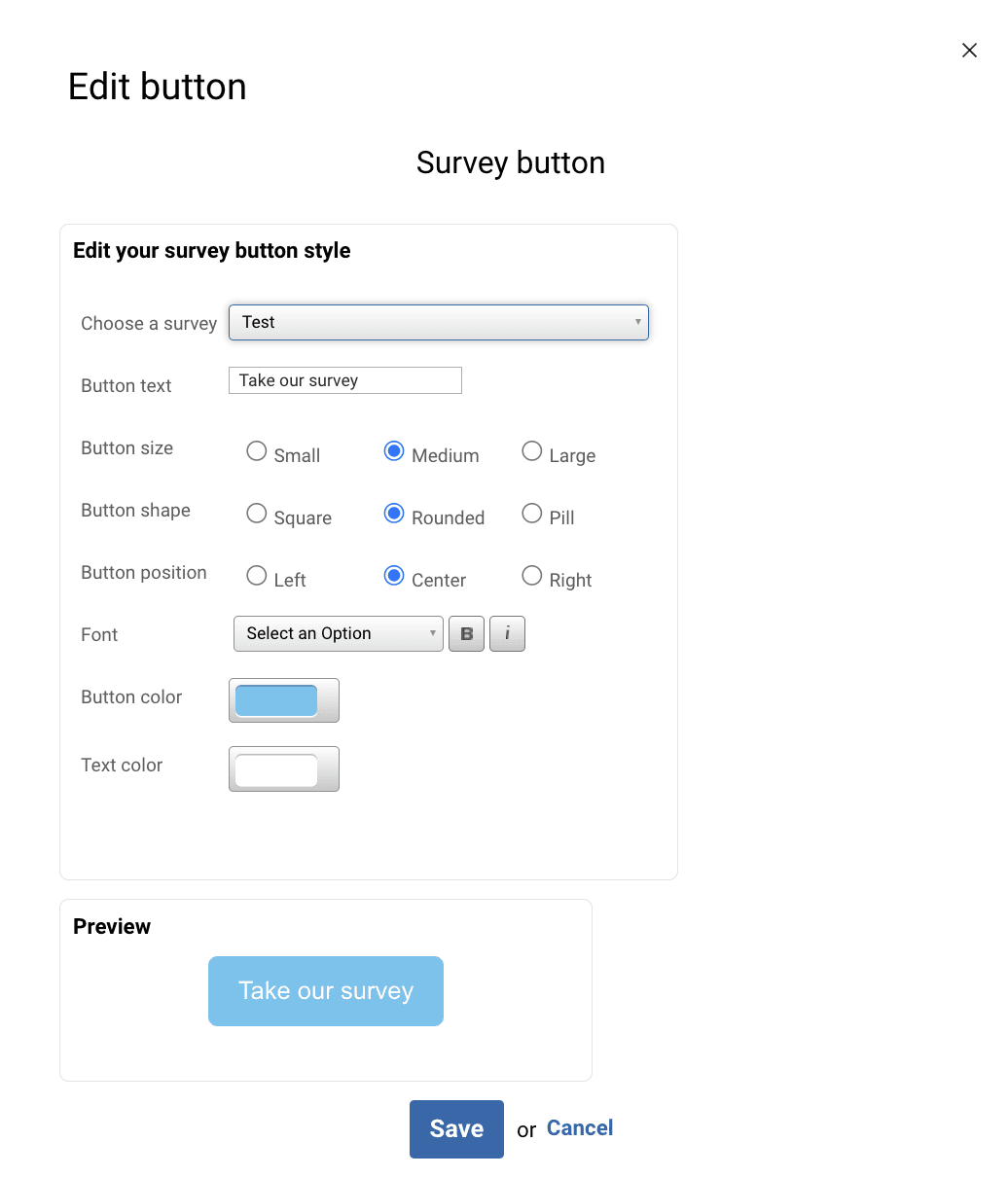
- Click on the Choose a survey dropdown menu and select the desired survey from the list.
- Use the options to style the button to your liking.
- Click on the Save button.
As with all links, you’ll want to be sure and test that the survey link works by sending yourself a test of the campaign before you send it out to your audience.
Linking to a Survey From Somewhere Else
If you do not have a SurveyMonkey account, you can still link to surveys created elsewhere, providing you have a unique URL for the survey. To do this, you would just need to use the button block instead of the survey block, and insert the URL for the survey as the link behind the button. Then you can recommend that your audience ‘take a survey’ by adding those the words to the button.
You can also use this method to link to surveys in the drag and drop editor. Since the drag and drop editor does not have a SurveyMonkey integration, this is the best way to add a survey to your drag and drop campaigns.
Tracking Survey Results
Our system will track the link clicks on your survey URL or button; however, the survey results themselves will be compiled in SurveyMonkey or the third-party survey platform that you choose to use. By default, the individual responses are anonymous so there is no way to know which responses came from which contacts.
* In April 2022, our legacy editor was replaced with a new drag and drop editor. Accounts that existed prior to this change still have access to the legacy editor through their previously saved templates and campaigns, however new, from-scratch campaigns can only be created in the new drag and drop editor. Accounts that were created after this change only have access to the new drag and drop editor. Please refer to our new editor FAQ article for more information.