
This article addresses some frequently asked questions about the new drag and drop editor.
In early 2022, we introduced a new drag and drop editor that replaced our legacy editor. While both editors offer drag and drop functionality, we’ve chosen to differentiate the previous editor as our legacy editor and to refer to the new iteration as the drag and drop editor.
Frequently Asked Questions About the Editor Transition Process
When did the new drag and drop editor become the default experience?
The transition process began on March 31, 2022 and accounts were moved to the new editor in waves through the month of April. We did have an open beta program beforehand for any customers who wanted to opt in early, so if your account participated in the open beta, then you may have started using the editor prior to March 2022.
Can I revert back to the legacy editor?
No, you cannot revert back to the legacy editor. However, you can access the legacy editor from any of your previously saved legacy campaigns and templates.
Can I still access my legacy editor campaigns and assets now that the new editor is live?
Yes, you can. New blank campaigns can only be created in the drag and drop editor, but you can reopen or copy any of your previously saved legacy campaigns and templates to continue to work on them. However, you will not be able to create new campaigns from scratch using the legacy editor.
What will happen to my custom templates? Can I migrate them to the drag and drop editor?
Templates built using the legacy editor are incompatible with the new drag and drop editor. If you want to use your legacy templates in the new editor, you will need to re-create them in the new editor.
All of your legacy templates and campaigns are now labeled with a “legacy” tag. Campaigns and templates that were created in the new editor are labeled with an “editor” tag. This means that you will still be able to use your legacy templates to create new campaigns using the legacy editor. Just remember that any new campaigns you create from scratch will be made using the drag and drop editor.
When will the legacy editor be removed?
The legacy and drag and drop editors will coexist for the time being. In the long term, we will only support the drag and drop editor, but we have no immediate plans to remove the legacy editor. We will give you plenty of notice before we remove the legacy editor.
Frequently Asked Questions About the Drag and Drop Editor
What is the name of the current campaign editor?
Our current campaign editor is called the drag and drop editor and the previous campaign editor is called the legacy editor. We’ve chosen to use drag and drop editor, or just “editor” for short, as the common term moving forward because over time it will become the only campaign editor available.
How is the new drag and drop editor different from the legacy editor?
The new drag and drop editor still has most of the familiar functionalities that the legacy editor offered, plus some exciting new features.
The Control Panel Is on the Right
One of the first things you’ll notice is that the editor panel has moved from the left side to the right side of the page. It takes up a bit more space as it also houses the main tabs for Content, Rows, and Settings.
Mobile Design Mode
Mobile design mode allows you to switch the view of the drag and drop editor while you’re editing a campaign to see how it will look on mobile and to build the campaign while in the mobile view. You can also choose to hide certain content while in mobile design mode.
Dynamic Layout Customizations
The drag and drop editor has all of the familiar editor functions, but now includes flexible layout options and content configurations that give you lots of dynamic customization options, including more granular control over style and size.
Undo, Redo, and Change History
The new editor tracks all changes made in a session so you can revert to a previous version at any time, allowing you to edit with confidence. When the editor detects changes, you’ll see a widget in the bottom left corner where you can undo and redo edits and scroll through all the changes in that session.
Changes are only stored for that specific session. If you leave the editor and reopen the campaign draft later, you will not be able to undo any of the changes made in the previous session.
Exciting New Templates
The updated template gallery, combined with the greater customization capabilities in the drag and drop editor, gives you more flexibility to craft beautiful modern emails with minimal effort. New templates include holiday themes, education themes, deal and offer themes, newsletters, and a variety of announcements, all designed to catch your audience’s attention in new ways, while also saving your team time.
Does the drag and drop editor use the same image and document libraries as the legacy editor?
Yes. Both image and document libraries are housed together. This means that you can access an image or document that you used in a legacy campaign to use again in a drag and drop campaign.
Does the drag and drop editor have an autosave feature?
Yes, the drag and drop editor is designed to autosave all changes every 60 seconds, so there is no need to click to save your work as you are creating it.
Does the drag and drop editor time out?
Yes. When a user opens a campaign in the drag and drop editor, the editor starts an invisible 50 minute timer. When a user is idle for 50 minutes, a pop-up window will appear asking them if they are still editing. If they do not respond within 60 seconds, they will be automatically logged out.
The 50 minute timer is reset every time a user clicks outside of the editor. As a result, if a user is busy in the editor and does not click on anything in the top gray bar such as Rename, Preview, Send test, Save, or Review, then the editor will think that the user is idle. Users can prevent this by periodically clicking on one of the buttons listed above in order to reset the timer.
Note: Certain factors can interfere with the editor’s ability to track session length. We recommend that you have only one tab of the application open at a time, so the first step will be to close any additional open tabs. Next, you may need to clear your browser’s cache and cookies. If you have browser plugins, you may also need to turn those off. If the behavior persists, your organization may have some network settings that prevent our application from tracking session length; try logging in to your email marketing account with a personal device on a network that isn’t connected to your organization. If that resolves the behavior, your IT team will be your best resource for preventing it on your organization’s network.
Is there a way to change the shape of the button or an image from square to round in the new editor?
Yes. In the “Button Properties” panel on the right, you can use the “border radius” control to adjust the corners of the button to be completely square or more rounded.
To round the corners of an image, simply add the desired image to the block and use the image rounded corners tool in the “Image Properties” panel. Rounded corners may render as square in Outlook inboxes.
Alternately, you could select the Apply effects option in the “Image Properties” panel to bring up the image editor and then use the “Corners” option to round the corners. However, if the image is a JPEG or JPG file, then the corners you cut off may be filled in with a black background instead. To avoid this, you will need to use a transparent background PNG file for that image.
Just be sure to remember that any changes you make and save using the image editor will become permanent changes to that saved image file in your image library.
Can I still access the HTML code for my campaigns in the new editor?
No. You cannot switch to see the HTML code for the entire campaign the way you could in the legacy editor, as this feature is no longer available with the new editor. Reviewing the HTML code was primarily being used to look for inconsistent text styling applied by the text editing toolbar. In the new editor, the text editing feature is built-in and designed to automatically fix any questionable formatting.
As an alternative, you can use the HTML block in the new editor to add your own HTML code in certain areas of your campaign.
Can I use dynamic content in the new editor?
Yes. Simply use the HTML block to add your dynamic content to the campaign in the same way you would in the legacy editor.
How can I wrap text around an image in the new editor?
The new drag and drop editor does not include a text wrap feature like the legacy editor did. Instead, it offers more flexibility, allowing you to mix and match rows and content blocks to create exactly what you need.
You can achieve a similar effect using rows. First, drag in a row that only has one column. Next, drag in a row that has two columns and place it beneath the first row. Finally, drag in another row that only has one column and place it beneath the second row. Add a paragraph block in the first row, an image block and a paragraph block side-by-side in the second row, and a paragraph block in the third row. By breaking up the text this way, you can fine-tune your layout for a polished appearance.
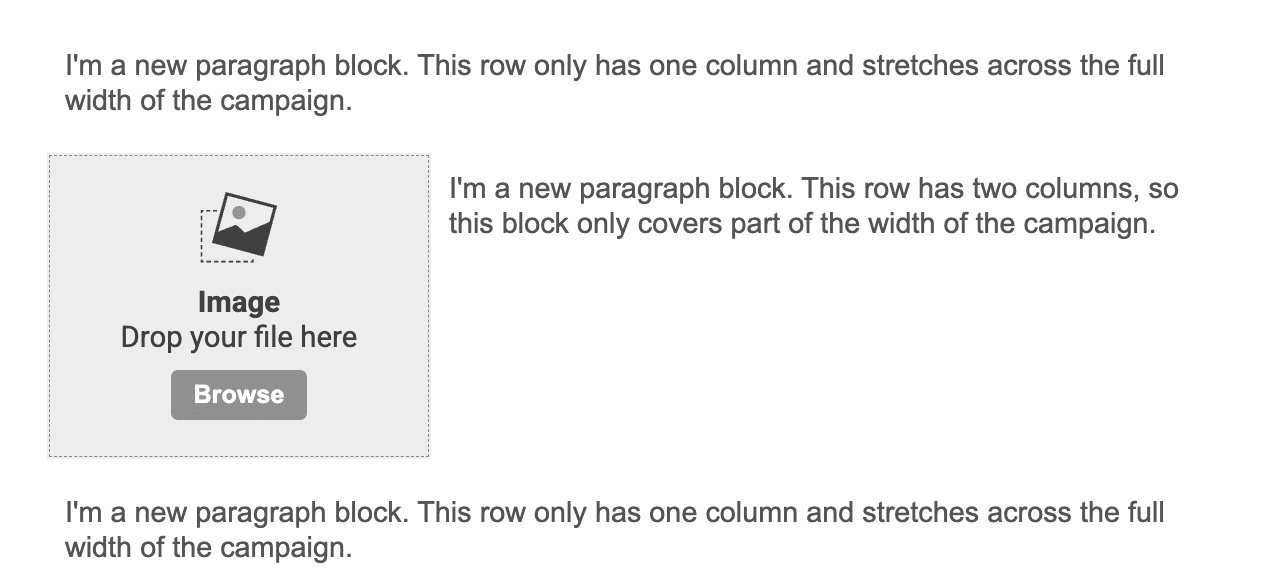
When designing campaigns this way, be sure to keep mobile responsiveness in mind. Additional adjustments may be necessary to ensure that mobile stacking doesn’t result in an undesirable layout.
How can I learn more about the new drag and drop editor?
Check out our drag and drop editor resource hub for more information, articles, and tutorials.