
This article explains how to the AI Assistant tool while creating a campaign in the drag and drop editor.
The AI Assistant can help you create and edit content in your title, paragraph, list, and button blocks. It can also help with spelling, grammar, tone, voice, and translation.
Warning: If you use the AI Assistant for translation, we recommend asking someone who is fluent / literate in that language to proofread the copy before you send the campaign.
Accessing the AI Assistant
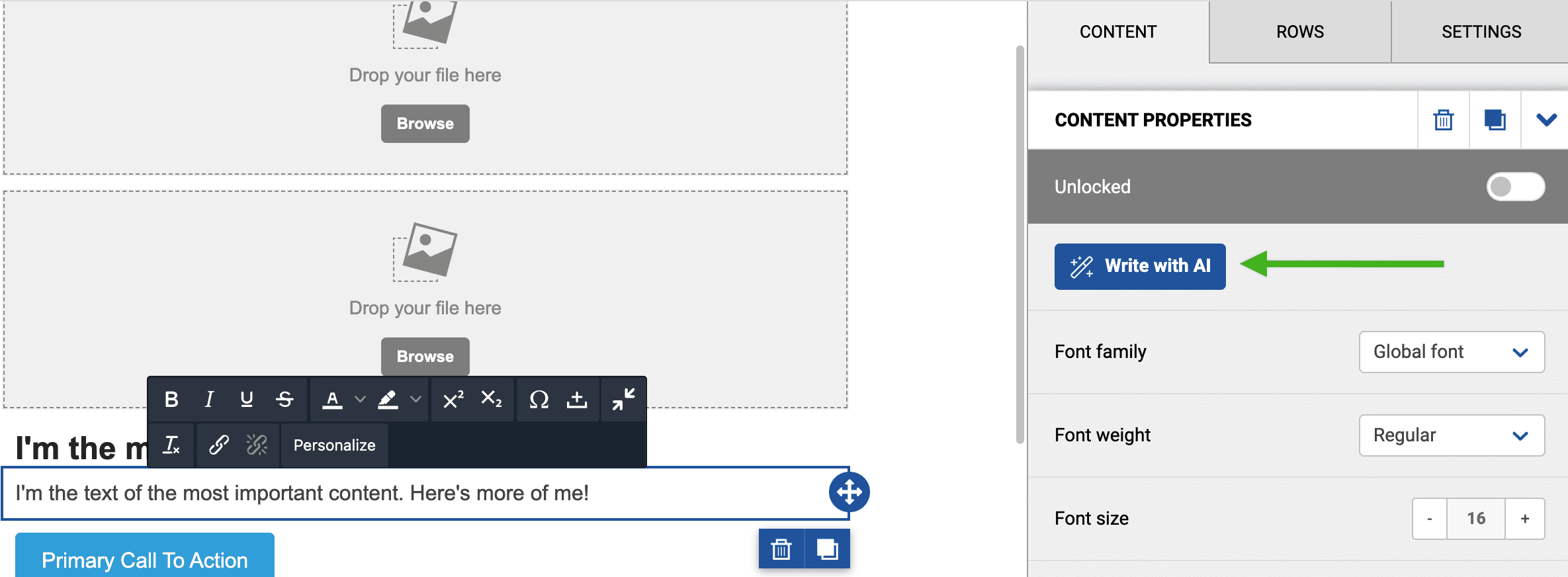
To access the AI Assistant, simply create a new campaign or open an existing draft of a drag and drop campaign. Once you’ve opened a campaign, click inside a title, paragraph, list, or button block and click on the Write with AI button to open the AI Assistant module.
Creating Content With the AI Assistant
- Click on Restart with a new topic to reset the screen.

- Type a description of your topic in the box.
- Click on the Generate button.
- Once you’ve gotten a good foundation, click on the Apply button to add it to your content block.
The more descriptive you are, the better this will work. For example, just writing “buy one get one free coffee” might not produce the results you’re looking for. However, writing “promotional email for buy one get one free coffee” gives the AI Assistant more information about what you’re trying to accomplish and will likely yield better content.
Editing Existing Content With the AI Assistant
The AI Assistant can also help you modify your existing copy. We’ve built in a few default prompts that you can use for this purpose, but you can also create your own. To use the default options, click inside the “What would you like to write about?” box and select one of the choices from the pop-up menu. The options are:
- Spell check the content
- Correct grammar mistakes in the content
- Translate the content
- Change the tone without changing the format
- Use Active Voice
You can also type your own commands into the box. For example, if you want to replace “coffee” with “latte”, you could type “Change coffee to latte” and click on the Generate button.

Tips for Getting the Most Out of AI Assistant
It’s important to write a good quality prompt and be as specific as possible in order to get the most out of AI Assistant. Here are some helpful things to keep in mind when you craft your prompts. If some of these items don’t apply to you or you don’t have all the information described below, that’s okay! Just do your best to communicate what you’re looking for to the AI Assistant. The more specific and clear you can be, the better results you will get.
Indicate Length
For example, “In 80 words, write an announcement for our annual sale.”
Specify the Voice
For example, “Write an announcement for our annual sale with an active, persuasive marketer voice.”
Provide the Desired Outcome
For example, “Encourage customers to shop our annual sale in store and online.”
Describe Your Target Audience
For example, “Parents with kids going back to school in the fall.”
Put It All Together
If we combine all the examples above, we get something like this: “In 80 words, write an announcement with an active, persuasive marketer voice, encouraging parents with kids going back to school in the fall to shop our annual sale in store and online.”
Frequently Asked Questions About the AI Assistant
Is the AI Assistant available in the legacy* editor?
No, the AI Assistant is only available in the drag and drop editor.
Which blocks does the AI Assistant work in?
You can use the AI Assistant in the paragraph, list, title, and button blocks.
Can I turn the AI Assistant off for my account?
Parent account / Standalone accounts: If you would like to turn off the AI Assistant for a parent account or a standalone account, please reach out to your account Parent, a Manager user, or your internal email marketing contact for assistance.
Subaccounts: Tiered accounts can turn off the AI Assistant for a subaccount by following these steps:
- Navigate to the desired subaccount.
- Click on the gear icon in the upper right corner of your screen.
- In the dropdown menu, click on Account under “Subaccount settings”.
- Click on the Features section.
- Uncheck the box next to “Show AI Assistant”.
- Click on the Save button.
You can also edit the subaccount defaults so that new subaccounts are created with the AI Assistant turned off.
- If you are working in the parent account, click on the Subaccounts tab. If you are working in a subaccount, click on the house icon and select Subaccounts from the dropdown menu.
- Click on the Subaccount defaults section.
- Click on the Account features dropdown.
- Uncheck the box next to “Show AI Assistant”.
- Click on the Save button.
Additional Resources
- Drag and Drop Editor: Content Tab
- Drag and Drop Editor: Frequently Asked Questions
- Drag and Drop Editor: Overview
- Drag and Drop Editor: Resource Hub
- Drag and Drop Editor: Rows Tab
- Drag and Drop Editor: Settings Tab
* In April 2022, our legacy editor was replaced with a new drag and drop editor. Accounts that existed prior to this change still have access to the legacy editor through their previously saved templates and campaigns, however new, from-scratch campaigns can only be created in the new drag and drop editor. Accounts that were created after this change only have access to the new drag and drop editor. Please refer to our new editor FAQ article for more information.